To make sure your readings are accurate, Airmonitor Plus needs a manual calibration before first use.
| QUICK ANSWERTake the monitor outdoors, wait at least 5 minutes, then press the rear multifunction button three times quickly. |
Only the CO₂ sensor supports manual calibration. The other sensors compensate automatically during normal use and don't need calibrating. Curious about the sensor? See What Type of CO2 Sensor Does Airmonitor Plus Use?
STEP BY STEPHow to calibrate the CO₂ sensor
| 1 | Place the monitor in fresh outdoor air. |
| 2 | Wait at least 5 minutes for the reading to settle. |
| 3 | Press the rear multifunction button three times quickly. |
| 4 | The CO₂ display changes to "--" to show calibration has started. |
| WHEN IT'S DONEThe CO₂ reading should settle at about 400–420 ppm, the normal level for outdoor air. |
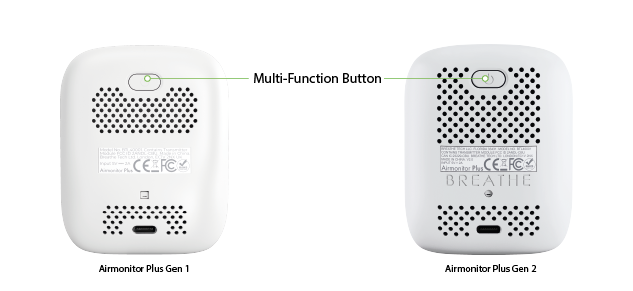 The multifunction button is on the back of both Gen 1 and Gen 2. |
For an accurate calibration
| Calibrate in clean outdoor air. | |
| Don't calibrate indoors. Indoor CO₂ levels are usually much higher than fresh outdoor air. | |
| Avoid calibrating near traffic, barbecues, generators or other sources of combustion. | |
| During calibration, don't breathe directly towards the monitor. |
When should I calibrate again?
After initial setup, we recommend calibrating the CO₂ sensor only if:
| ✓CO₂ readings seem consistently inaccurate. |
| ✓The monitor has been transported a long distance. |
| ✓The device has been stored for a long time. |
| ✓You simply want to check the sensor's accuracy. |
For most people, calibration is only needed occasionally.
OTHER READINGSOther sensors look wrong?
See TVOC Readings Are Low or Showing Zero, HCHO (Formaldehyde) Readings Are Low or Zero or PM Readings Stay at Zero.
| NEXT STEPCalibrated? Now connect Airmonitor Plus to Wi-Fi to use the app, alerts and graphs. |
| Reading still looks wrong?If your CO₂ reading is still very different from what you'd expect after calibrating, contact Breathe Tech Support. Please include a photo of the display and a short description of the issue.Contact supportor email support@breathe-tech.com |
Was this article helpful?
That’s Great!
Thank you for your feedback
Sorry! We couldn't be helpful
Thank you for your feedback
Feedback sent
We appreciate your effort and will try to fix the article